To bring in efficient processes, many teams now rely on Zoho CRM workflow automation to reduce repetitive work. Manual data entry, follow-up reminders, and record updates consume hours every week. Also, according to research from Oracle, automation can lead to a 14.5% increase in sales productivity.
Automating routine steps inside Zoho CRM helps teams focus on customers instead of paperwork. This guide explains how workflow automation works, how to set it up, common use cases, mistakes to avoid, and when a Zoho consultant can help.
- Workflow automation replaces repeated manual tasks with rules that run on their own.
- Clear triggers and conditions prevent rules from firing on the wrong records.
- Testing and regular review keep automation working as your process changes.
What Is Workflow Automation in Zoho CRM?
For your business, when you set up Zoho CRM automation, the system handles repetitive tasks on its own. It watches for specific events, then performs actions without anyone clicking a button, which also removes manual steps from daily sales and support.
How workflow automation works in Zoho CRM
Zoho CRM workflow automation follows a simple logic: a specific action after every task, etc., where you define a trigger, such as a new lead or a date change. You set conditions to filter which records qualify. Then you assign an action, like sending an email or updating a field. The system runs this in the background without the need to monitor.
Key benefits of automating CRM tasks
- Saves time on data entry and follow-ups.
- Reduces human errors in record updates.
- Keeps processes consistent across the team.
- Helps reps respond faster to leads.
- Gives managers clearer visibility into pipeline activity.
When should a business use workflow automation?
A business should consider Zoho CRM workflow automation when manual tasks start slowing the team down. Common signs include missed follow-ups, duplicate data entry, and delayed lead responses. If your team repeats the same steps daily, automation can handle them. It also helps when your sales process has clear stages and rules. Small teams benefit first, but growing teams need it most.
Understanding Zoho CRM Workflow Rules, Triggers, and Actions
Let us see the three main parts that make Zoho CRM workflow automation work. Each part has a clear role.
What are workflow rules in Zoho CRM?
Zoho CRM workflow rules are instructions you create inside the system. Each rule defines what should happen when a specific event occurs. You can turn rules on or off anytime. Rules apply to a chosen module, such as Leads or Deals. They run automatically once activated.
Workflow triggers: Record actions, dates, and other supported conditions
Zoho CRM triggers decide when a rule starts, and there are two main types.
- Record actions fire when someone creates, edits, or deletes a record.
- Date-based triggers fire on a set date or a fixed time before or after it.
Here, some triggers also respond to field changes or inbound webhooks.
Workflow conditions and criteria
The conditions help you pick which records a rule works on. You can combine multiple conditions using AND or OR logic. For example, a rule might run only when a deal value exceeds a set amount, and the stage equals Negotiation. Clear conditions prevent rules from firing on the wrong records.
Workflow actions: Email notifications, tasks, field updates, webhooks, and supported integrations
When a trigger and its conditions are met in Zoho CRM, actions decide what happens next. Common choices include sending email alerts, creating new tasks, and modifying fields. Webhooks let you reach other systems too. Connecting Zoho apps and external tools adds more options for what actions can perform.
How to Set Up Workflow Automation in Zoho CRM?
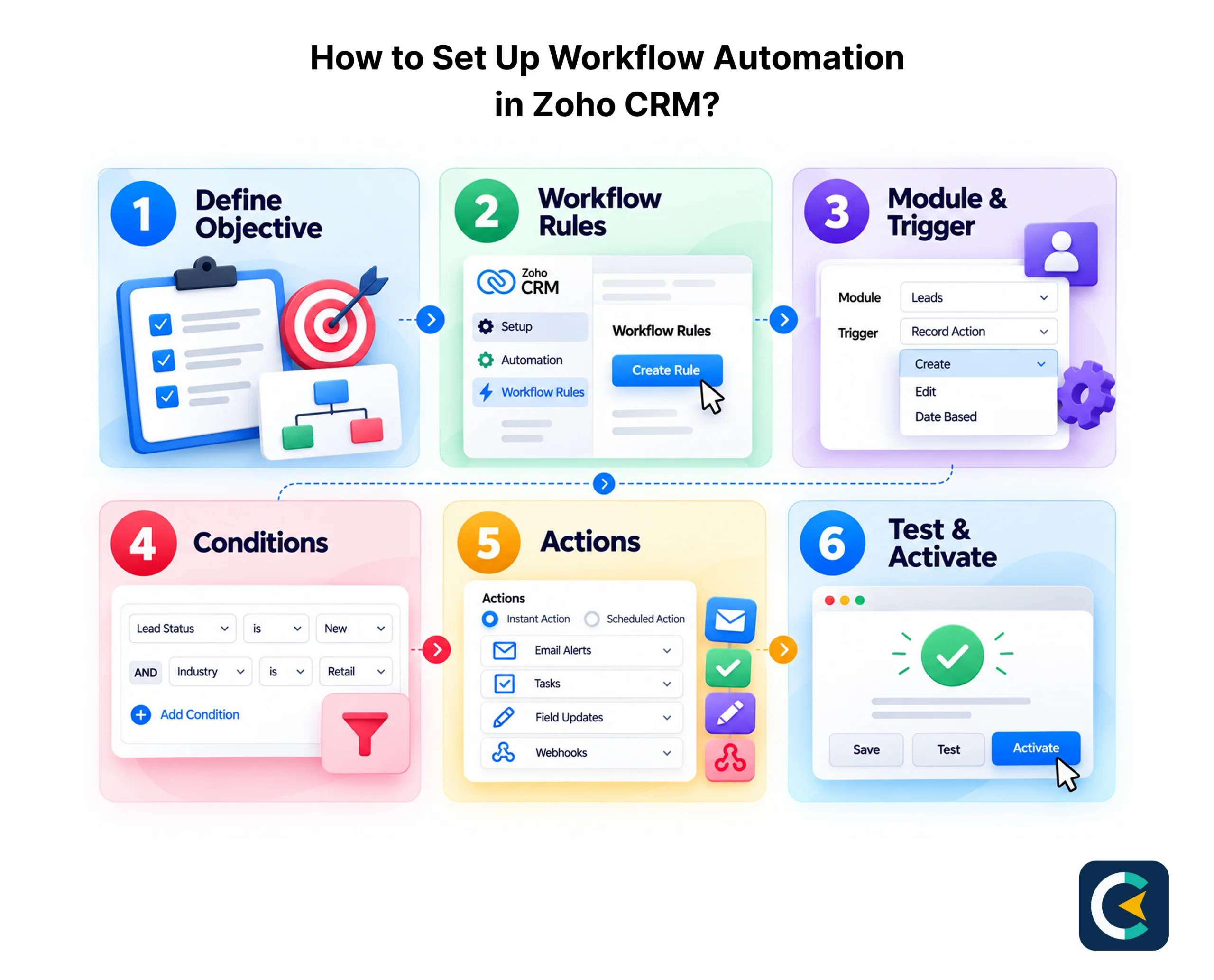
Here is how you can easily set up Zoho CRM workflow automation in six steps. Each step builds on the last. Follow them in order to avoid errors.
Step 1: Define the business process and automation objective
First, you need to write down the manual task you want to remove. Identify which module it belongs to. Set a clear goal, such as faster lead follow-up, to keep your automation focused and measurable.
Step 2: Navigate to workflow rules in Zoho CRM Setup
Now, go to Setup, then Automation, then Workflow Rules. Click Create Rule, and choose the module you want the rule to run on. Also, give the rule a clear name.
Step 3: Select the module and configure the rule trigger
Now, pick when the rule should fire. Choose a record action, like create or edit, or a date-based trigger. This becomes the starting point of your Zoho CRM workflow setup.
Step 4: Set conditions and criteria for execution
You can add conditions to control which records the rule affects. Use fields, values, and AND/OR logic. Here, fewer, clearer conditions reduce the chance of wrong records triggering the rule.
Step 5: Configure instant or scheduled actions
Decide if the action runs instantly or on a schedule. Select from email alerts, tasks, field updates, or webhooks. You can add multiple actions under one rule.
Step 6: Save, test, and activate the workflow
Save the rule first, then test it with sample records. Check that actions fire as expected. Once confirmed, activate the rule. Review it after a week to catch issues.
CRMSpire Pro Tip: Map your process on paper before building rules. This avoids overlaps and keeps automation aligned with how your team works.
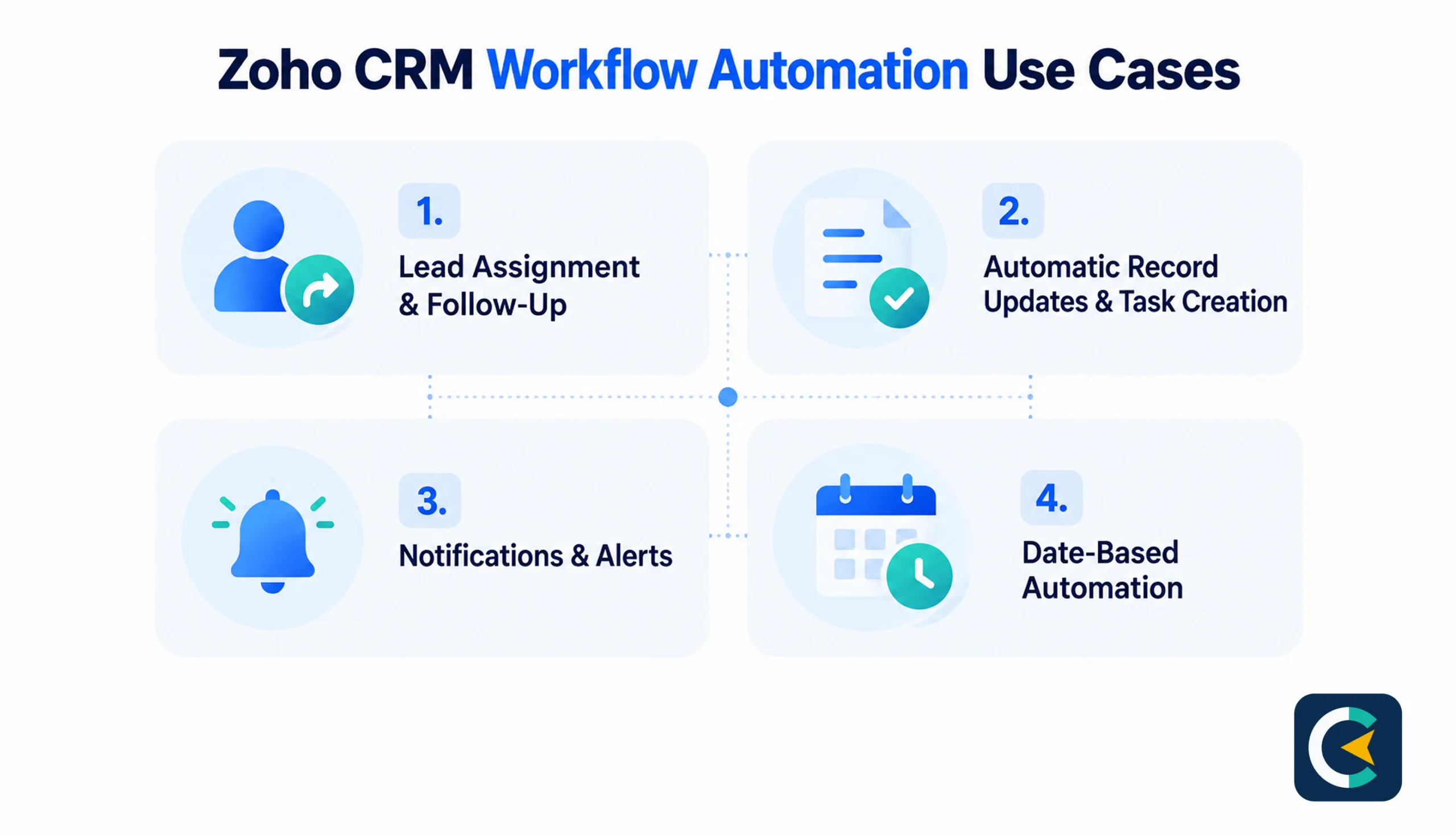
Common Zoho CRM Workflow Automation Use Cases
To understand the workings of your Zoho CRM automation, it helps to see how teams use it daily.
Automating lead assignment and follow-up reminders
When a new lead comes in, the system can assign it to the right rep based on region or product. It can also set a reminder if no follow-up happens within a set time. This prevents leads from being ignored.
Updating records and creating tasks automatically
When a deal moves to a new stage, the system can update related fields on its own. It can also create tasks for the next step. Reps no longer need to update records or add tasks manually.
Sending notifications based on record changes
Zoho CRM workflow rules can send alerts when important fields change. For example, a manager gets notified when a deal value crosses a threshold. This keeps the right people informed without manual updates.
Triggering actions based on dates and deadlines
Zoho CRM triggers can fire on specific dates. The system can send a renewal reminder before a contract ends or create a task before a deadline. This helps teams stay ahead of time-sensitive work.
Common Workflow Automation Mistakes and Best Practices
It is best to know these common mistakes before building your Zoho CRM workflow automation and avoid them.
- Two rules firing on the same record can cause duplicate actions. Keep one rule per clear purpose.
- Wrong conditions or triggers make rules fire on unrelated records. Double-check field values and logic before saving.
- Always test with sample records first. This catches errors before they affect live data.
- Review rule logs regularly to spot failures. Update rules when your sales process changes.
When Do You Need a Zoho CRM Consultant for Workflow Automation?
For your business, you can manage simple rules on your own. But some situations need expert help, and expert Zoho consultant brings experience that saves time and prevents costly errors.
Managing complex conditions and multi-step workflows
When rules involve many conditions or depend on each other, mistakes are easy to make. A consultant designs the logic cleanly and ensures each rule runs in the right order.
Connecting workflows with other Zoho applications and third-party tools
Zoho CRM workflow automation often needs to connect with Zoho Books, Desk, or outside tools. A consultant handles these integrations so data flows correctly between systems.
Troubleshooting automation failures and optimizing existing workflows
If rules stop working or run slowly, a consultant finds the cause. They also review existing Zoho CRM workflow rules and improve them as your process changes.
End Note
When automating the way your team works, start small and stay clear. Zoho CRM workflow automation removes repeated tasks, keeps records updated, and helps your team focus on customers.
If setup feels complex, Zoho consultants at CRMSpire can help map your process and configure Zoho around how you actually work. With the right structure in place, automation supports your team instead of adding more work.